How to connect a personal Google Drive or Dropbox folder to your project
- Add a new data connector by clicking the ➕ in the Data section of your project.
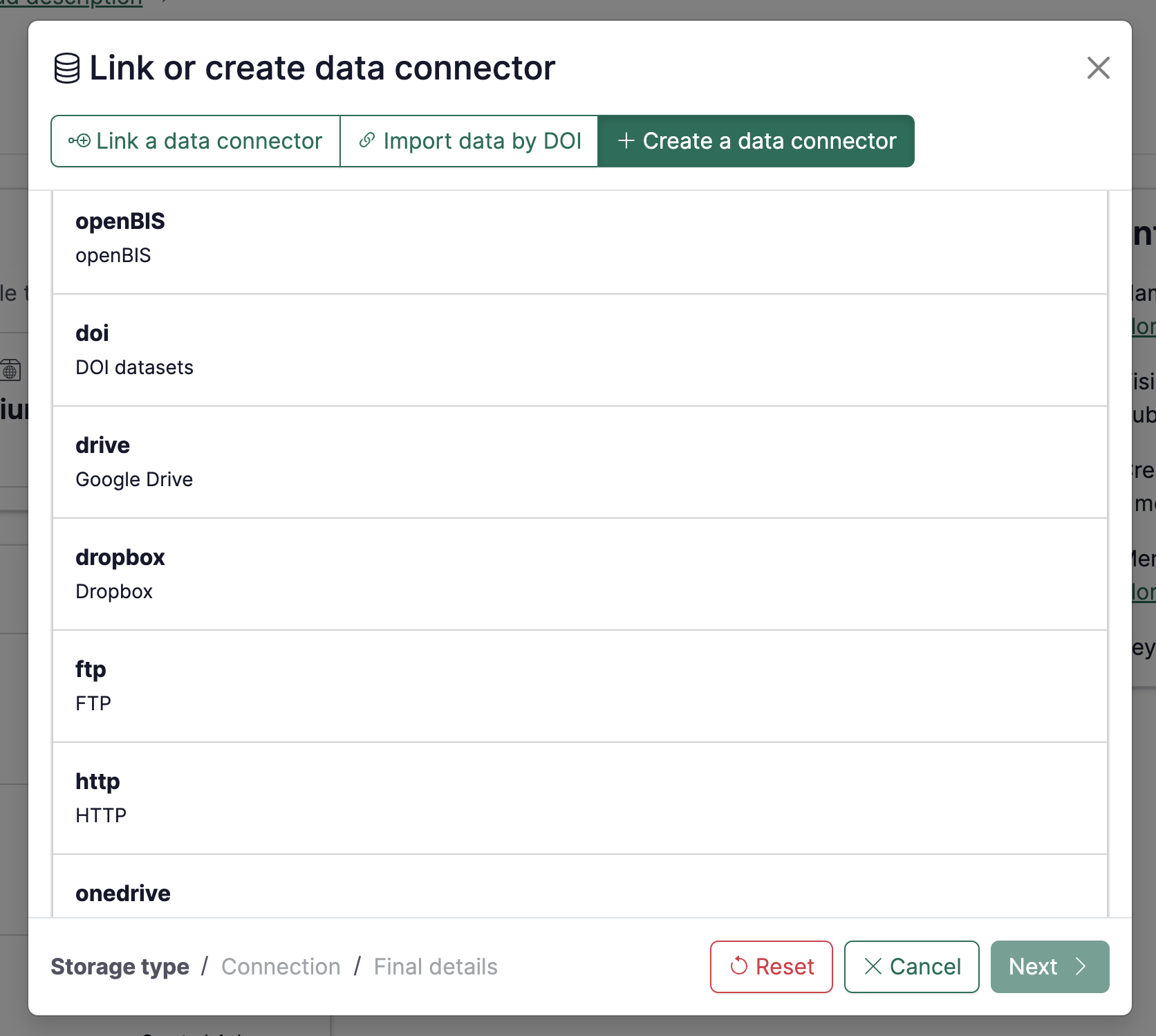
- Click on Create a data connector, then pick Show more and choose drive or dropbox.
- Click on Next
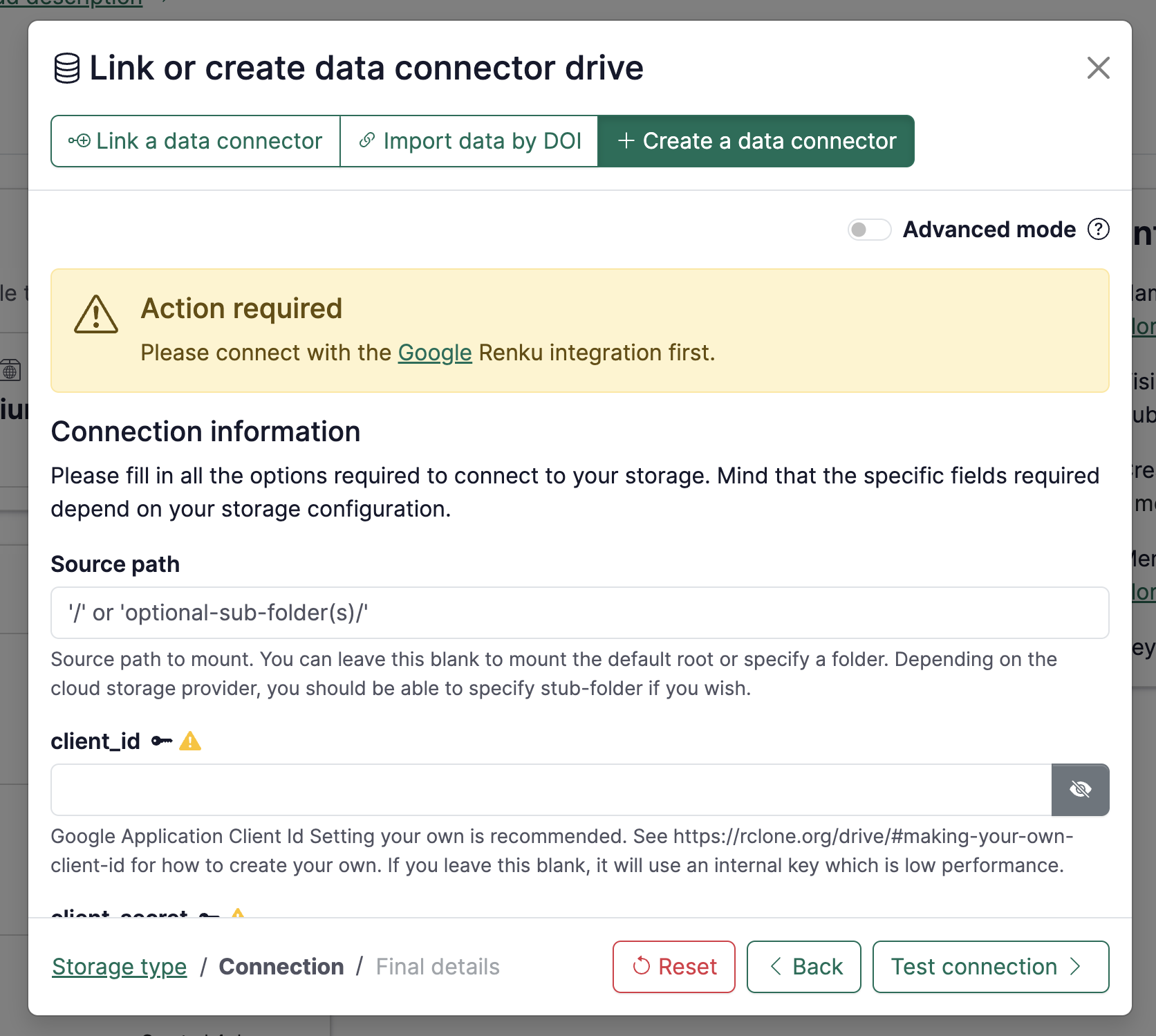
- At this step, you will be prompted to activate the Google or Dropbox integration if you have not done so yet. Click on Google or Dropbox inside the warning box to connect your account.
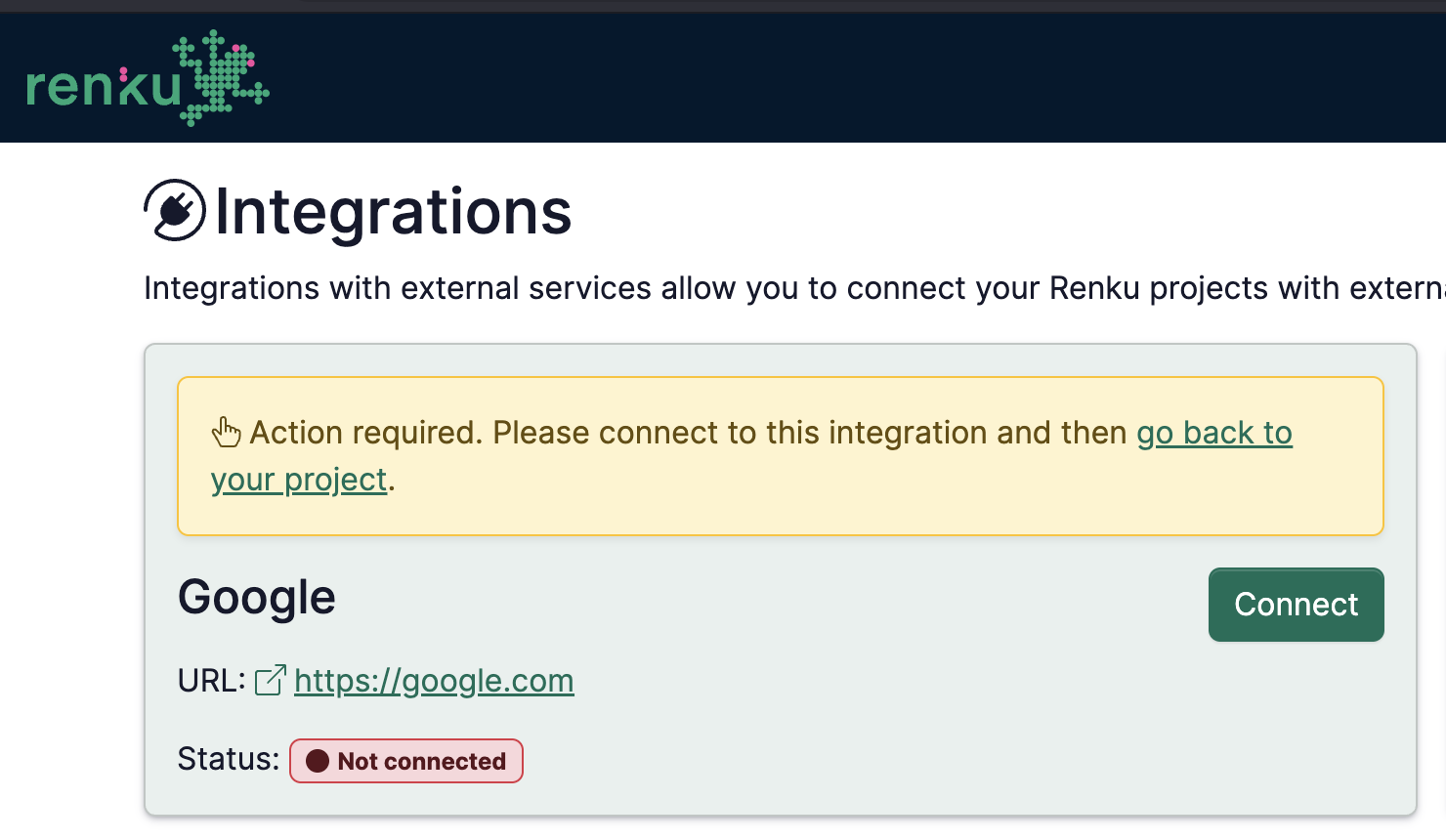
- You will be directed to RenkuLab's integration page. Click on the Connect button inside the highlighted integration.
-
Authenticate with your Google or Dropbox account and accept the permissions requested by RenkuLab. Once you are back to the integration page, click on go back to your project and re-do steps 1 to 3.
-
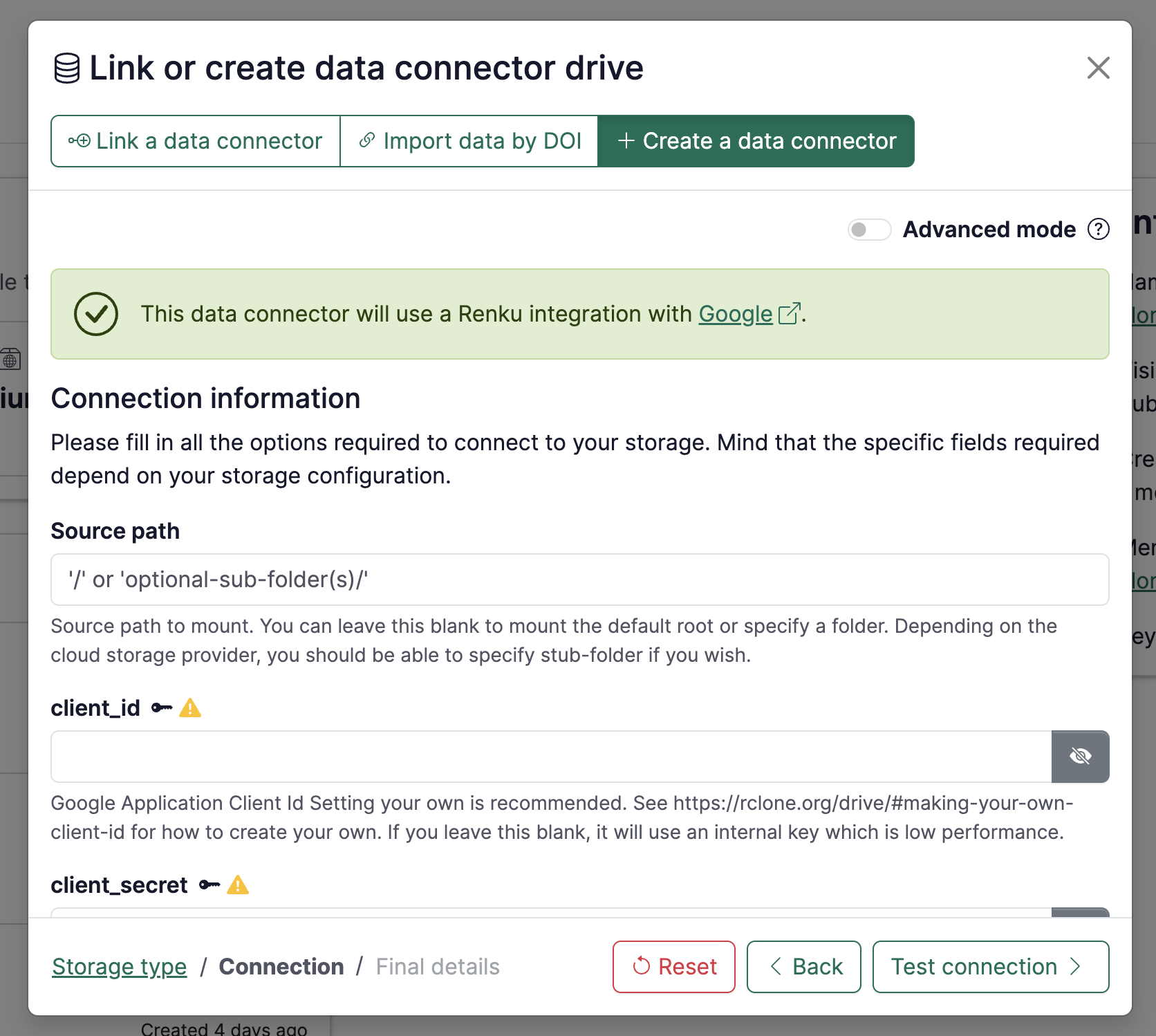
Once you are back at step 4, you will see that the Google or Dropbox integration is active. You do not have to fill in any setting at this step. Click Test connection then Continue.
- Specify the final details of the data connector, namely:
- Name: term to refer to your data connector
- Owner: select where it belongs (either to the project itself, to you as a user or to a group you are part of)
- Visibility: decide whether it should be public or private
- Read-only: by default is active. Deactivate if you want to have read/write access.
- Keywords: add keywords that may help you organizing your work.
- Advanced settings
- Mount point: name of the directory in your session workspace where the folder will be mounted.
- Click on + Add connector