How the CSCS integration works in Renkulab
The RenkuLab: CSCS integration allows users to start interactive Renku sessions running as HPC jobs at CSCS.
RenkuLab accesses compute and storage resources on behalf of the user, using existing permissions and resource allocation. Running Renku sessions at CSCS will consume compute credits from your CSCS account(s) and may affect other resources you have at CSCS (e.g. storage).
Instructions
Prerequisites
- You need to have an account at CSCS which can launch jobs on the HPC platform or the ML platform.
- You need to have a RenkuLab.io account.
Step 1: Connect to the CSCS integration in RenkuLab
Go to the integrations page and connect with the CSCS integration.
Step 2: Complete the form
Fill in the request access to the Renku/CSCS Integration form, so that a RenkuLab admin can let you launch sessions with the CSCS integration.
Fill in the form so that a RenkuLab admin can let you launch sessions with the CSCS integration.
Step 3: Launch a session
Option 1: Try out a template
- Go to this Renku project and click on the Copy project green button.
- 🚀 Launch a session on the Python Basic - VSCodium - Eiger launcher!
Option 2: Create your own CSCS launcher in your project
-
Create a new Renku project
-
Add a new session launcher
-
For the launcher’s environment:
-
If you want to Create from Code, please note that only Python environments work on CSCS. If you’re unfamiliar with creating a code-based environment on Renku, see How to create an environment with custom packages installed
-
If you want to use the Renku Global Environments, select Python Basic or Python Datascience
warningDo not pick Python/Jupyter, Virtual desktop or RStudio.
-
Please note that External Environments do not work with the CSCS integration.
-
-
When selecting Session launcher compute resources, open the drop down and select a CSCS resource class, such as the
Eiger - Debugresource class inside theCSCS - Eiger - Debugresource pool! -
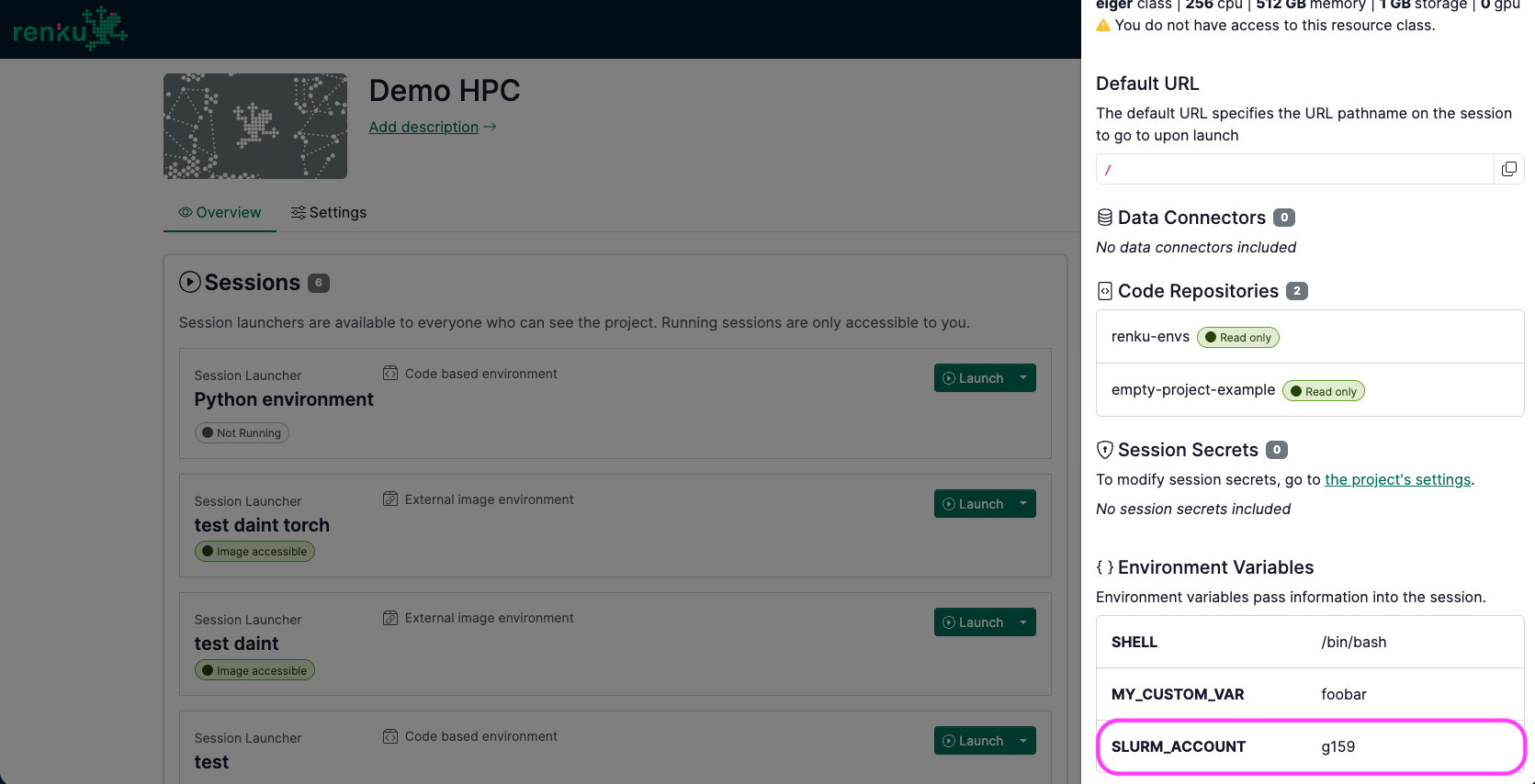
Note: By default, the job is submitted against your default CSCS account
If you’d like the job go to a different account…
- Open your session launcher side panel
- Scroll down to the Environment variables section
- Add an environment variable with key
SLURM_ACCOUNTand set the value to your CSCS organisation (e.g.g159).
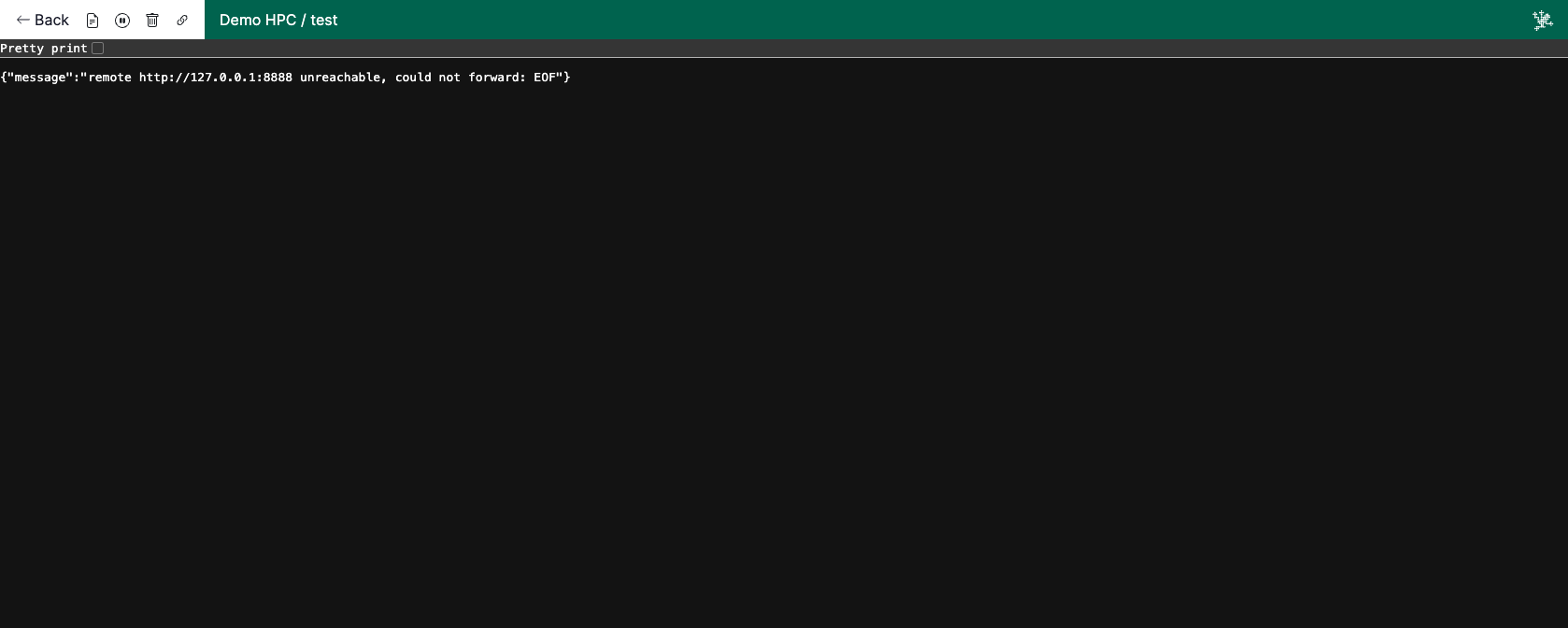
noteNote: If you see the following screen, wait a minute and try to refresh the page. The session is still starting at CSCS.
 warning
After you shut down your sessions, make sure that there is no running job leftover at CSCS. Session shut down is not 100% reliable right now.
- Go to https://my.hpcp.cscs.ch/compute (or https://my.mlp.cscs.ch/compute) and check that no job is running
What works & What doesn’t work yet
Currently working
✅ Launch interactive Renku sessions at CSCS on: Eiger and Bristen
- Sessions on
Daint,Claridenwork, but only with special images created by the Renku team. Simplified integration with ARM clusters is coming soon. Please Contact us for more info.
✅ Access data from scratch, store and home
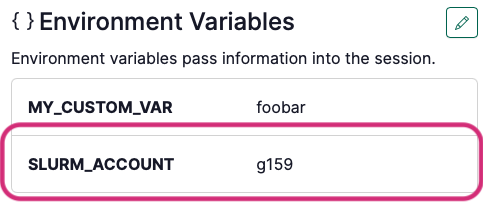
✅ By default, the job is submitted against your default CSCS account
If you’d like the job go to a different account...
- Open your session launcher side panel
- Scroll down to the Environment variables section
- Add an environment variable with key
SLURM_ACCOUNTand set the value to your CSCS organisation (e.g.g159).
See the example Project "Demo HPC"
✅ “Create from code” environments and Global environments work (on Eiger only)
If you’d like to test Daint outside of the pre-prepared project...
At the moment, only special images work on Daint. The testing project comes with a launcher suitable for Daint. Here’s how to test on Daint in your own project (we will integrate this into RenkuLab more properly later!):
- Create a session launcher with an External Environment
- For the configuration, copy configuration from this session launcher.
- Ask to be added to a Daint resource pool
Tested: has torch and reports cuda access to 4 GPUs
- Code repositories added to the Renku project are added to your session
Not working at the moment
❌ Renku data connectors
❌ External environments (bringing your own docker image)
❌ Renku session secrets
❌ Configuring the max run time of the job
❌ Submitting slurm jobs from within the session
How does this work? Where can I see my things at CSCS?
In the Renku session logs, look out for the following logs:
{"time":"2025-09-25T09:30:12.370016834Z","level":"INFO","msg":"determined session path","sessionPath":"/capstor/scratch/cscs/fthiebau/renku/sessions/flora.thiebaut/demo-hpc/flora-thieba-ff7d0b715ab8"}
...
{"time":"2025-09-25T09:30:19.100336894Z","level":"INFO","msg":"submitted job","jobID":"5692630"}
Then you can go to the Renku session folder:
$ ssh eiger
[eiger][fthiebau@eiger-ln004 ~]$ cd /capstor/scratch/cscs/fthiebau/renku/sessions/flora.thiebaut/demo-hpc/flora-thieba-ff7d0b715ab8
- The
slurm-<JOB_ID>.outfile contains the logs of the session. - The
session_script.shfile contains the script submitted to SLURM- you should see
#SBATCH --account=<ACCOUNT>at the top if you set it
- you should see
- The
environment.tomlfile is used to start the container, see https://docs.cscs.ch/software/container-engine/ - The
workfolder is the working directory inside the session. If you saved any files during the session (e.g. notebooks), they will be found here.