Configure a session secret
Session secrets help you connect to protected resources, such as databases or external compute systems, from a Renku session in a standardized and shareable manner. Collaborating with secrets is easy too: configure a single session secret slot to ensure that the secret shows up the same way for everyone, and each person enters their own value.
How to add a session secret slot to the project
The session secret slot determines how the secret shows up in the session (the secret file name and path), which is the same for every member of the project.
If you are adding a session secret to a project for the first time, follow these steps to set up the secret slot:
- Go to project Settings.
- Scroll down to the Session secret slots section.
- Click the ➕ button to add a session secret slot.

- Give the session secret slot a name and a description so that other project members know what the secret is for.
- Specify the filename for the secret slot.
- Click Add session secret slot and continue to the next section…
How to enter your value for a session secret
Once a have created a session secret slot, you may optionally enter your secret for the slot.
Secrets you enter on Renku are only saved for you. Secrets are not shared with other Renku users.
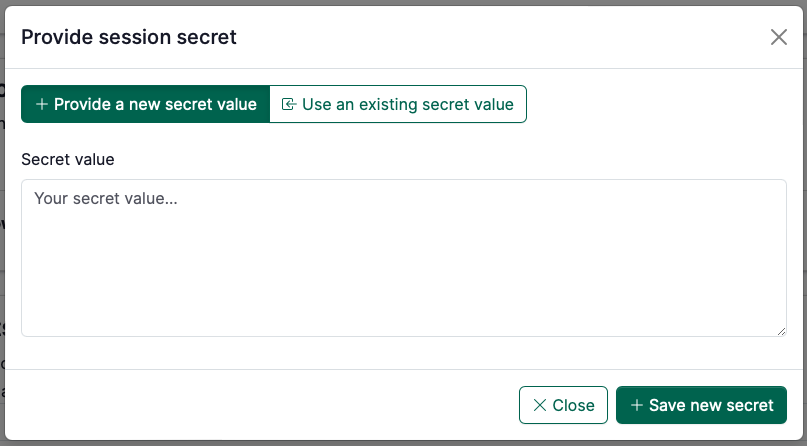
You can either:
-
Provide a new secret value: You can enter the for secret you want to use for the secret slot.
-
Use an existing secret value: This lets you reuse a secret you have already saved in Renku for this secret slot.
tipIf you use the same database in multiple projects, you can save the database credential in Renku once, and use the Use an existing secret value option to attach that secret to multiple projects.
Where do I go to enter a secret for a session secret slot?
There are a few ways to get to the screen above.
-
If you just created a session secret slot, you will see the screen above directly as the next step after creating the session secret slot.
-
When you launch a session on a project that has session secrets slots, you will be prompted during session launch to enter secrets for the slots.
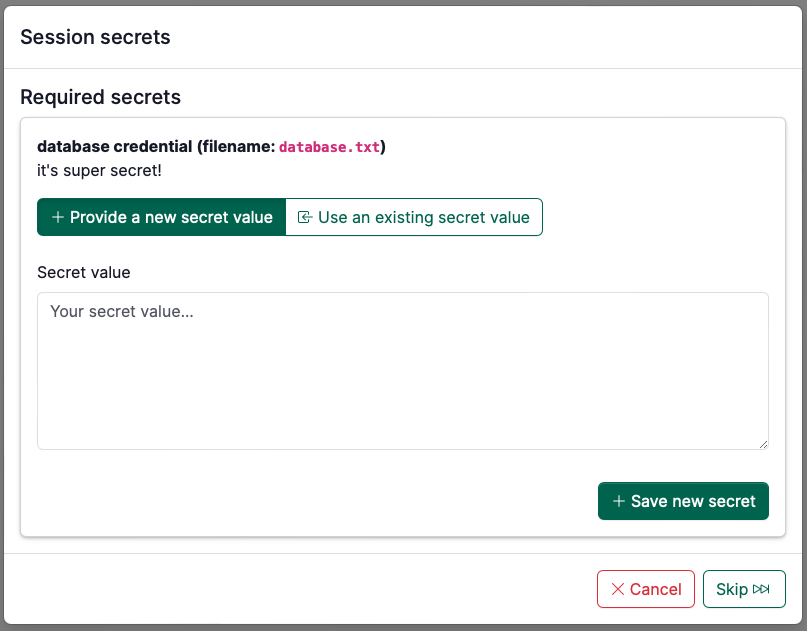
- You can always go to project Settings, scroll to Session Secret Slots, and click the Provide secret button.
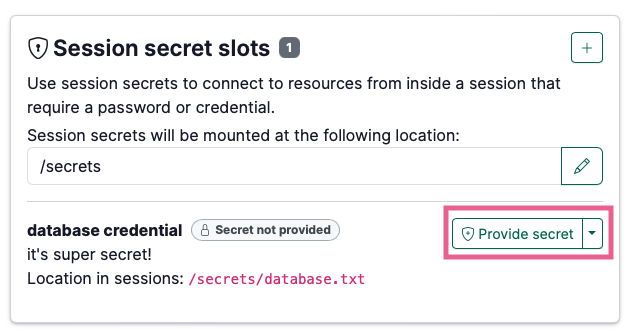
How to view all session secrets you have saved on Renku
- Click on the user menu in the top right and select User Secrets.
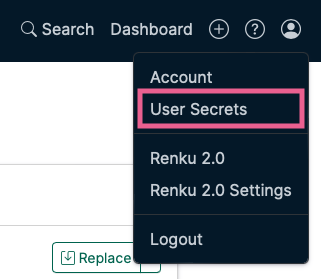
This page shows you all secrets you have saved on Renku, both saved session secrets and saved data connector secrets.
From this page, you can:
- View in which projects and data connectors the secret is used.
- Replace the value of the secret. This updates the value that is used for all connected session secrets or data connectors.
- Delete the secret.