Use your own docker image for a Renku session
What Docker images can I use in RenkuLab sessions?
There are some limitations to what images you can use in Renku sessions. The image must meet all of the conditions below in order to work on RenkuLab:
-
The image needs a front end
The image you use needs a user interface web frontend to run so that you can access the session via the browser. Examples of these include JupyterLab, VSCode or RStudio.
-
The image must be public
RenkuLab can not yet use images that not publicly accessible.
-
The image will be run as non-root
For security reasons, sessions are started with a non-root user.
How to configure an image as a custom environment
In the project page:
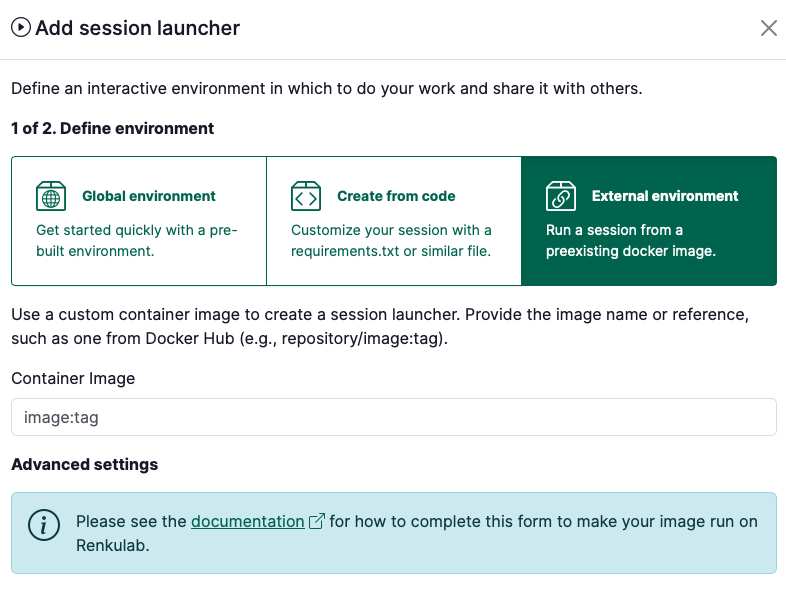
- Under Sessions section click on ➕ to add a new launcher
- Select External environment
-
For the container image, provide an image identifier.
- Some examples of image identifiers:
- if the image is hosted on DockerHub:
renku/renkulab-py:3.10-0.24.0continuumio/anaconda3:2024.06-1
- if the image is hosted on GitHub:
ghcr.io/swissdatasciencecenter/renku-frontend-buildpacks/base-image:0.0.8
- if the image is hosted on DockerHub:
- The image identifier should be in the format that works with
docker pull
- Some examples of image identifiers:
-
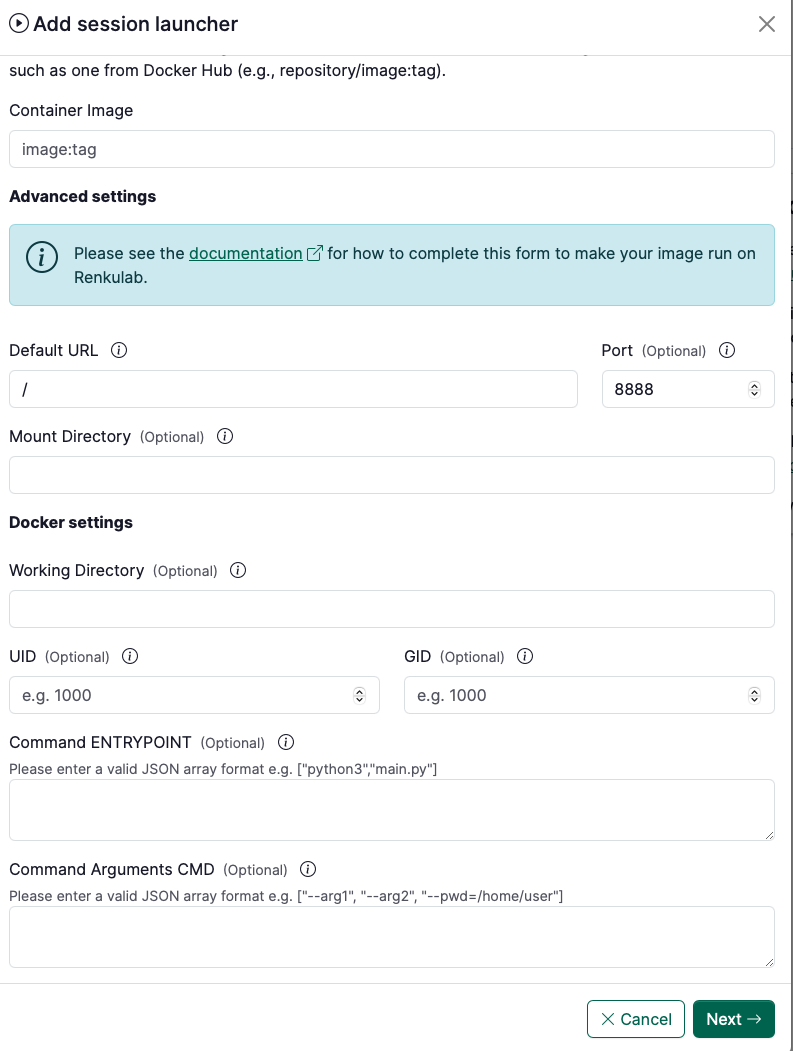
If needed, fill in the Advanced settings to tell Renku how to run your image. The available fields are:
- Container Image: the image identifier to use (e.g.
renku/renkulab-py:3.10-0.24.0) - Default URL: the path appended to the session URL to open the front end (e.g.
/labfor JupyterLab,/rstudiofor RStudio) - Mount Directory: the directory inside the container where Renku mounts your project files (e.g.
/home/jovyan/work) - Working Directory: the directory the session opens in (e.g.
/home/jovyan/work) - UID: the user ID the container process runs as (e.g.
1000) - GID: the group ID the container process runs as (e.g.
100) - Command ENTRYPOINT: the shell entrypoint (e.g.
["sh", "-c"]) - Command Arguments: the command passed to the entrypoint to start the front end server See Example image configurations for common front ends below for ready-made values per front end.
- Container Image: the image identifier to use (e.g.
-
Select the Resource class that best fits your expected computational needs.
tipIf the available resource classes are too small for your compute requirements, we can create a custom resource pool for you! See Request a Custom Resource Pool.
-
Give your session launcher a name.
-
Click on Add session launcher button.
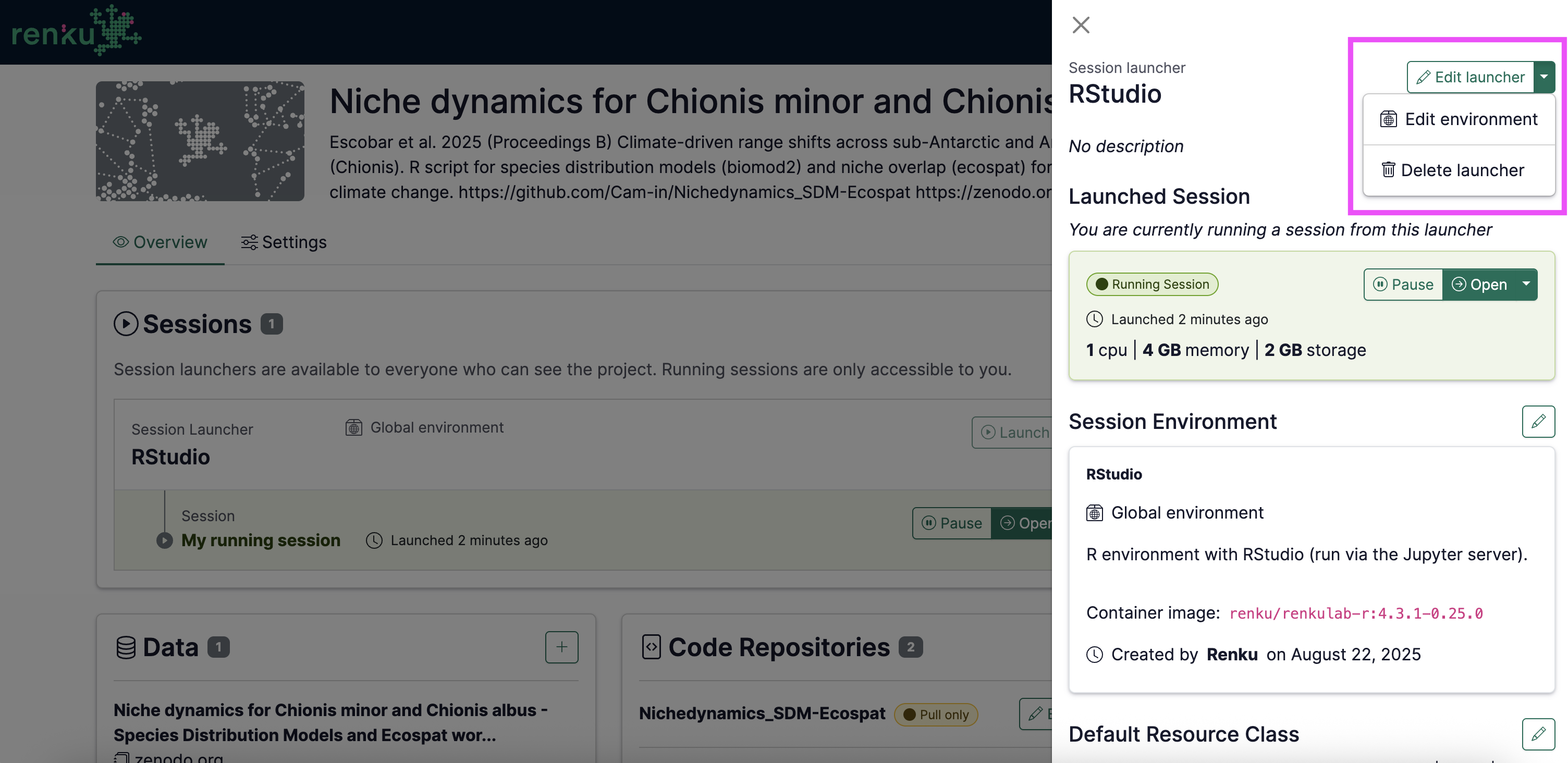
Note that you can always modify your session launcher by clicking on top of it on the project’s page, and using the menu on the right:
Example image configurations for common front ends
In order to run a docker image in a session, Renku needs to know some information about how to run and serve that image.
In this section, you can see example configurations for commonly used images. If you build an image with one of these images as the base, then you can use this provided configuration to make that image run in RenkuLab. The information below can be copied and pasted into the Advanced Settings form for creating a custom environment.
Jupyter
- Container Image:
jupyter/minimal-notebook:python-3.11 - Port:
8888 - Default URL:
/lab - Command ENTRYPOINT:
["sh", "-c"]
- Command Arguments CMD (learn more):
[
  "jupyter server --ServerApp.ip=0.0.0.0 --ServerApp.port=8888 --ServerApp.base_url=$RENKU_BASE_URL_PATH --ServerApp.token=\"\" --ServerApp.password=\"\" --ServerApp.allow_remote_access=true --ContentsManager.allow_hidden=true --ServerApp.allow_origin=*"
]
Julia and Jupyter
- Container Image:
jupyter/julia-notebook:x86_64-python-3.11.6 - Port:
8888 - Default URL:
/lab - Working Directory:
/home/jovyan/work - Mount Directory:
/home/jovyan/work - Command ENTRYPOINT:
["sh", "-c"]
- Command Arguments CMD (learn more):
[
  "jupyter server --ServerApp.ip=0.0.0.0 --ServerApp.port=8888 --ServerApp.base_url=$RENKU_BASE_URL_PATH --ServerApp.token=\"\" --ServerApp.password=\"\" --ServerApp.allow_remote_access=true --ContentsManager.allow_hidden=true --ServerApp.allow_origin=*"
]
Rstudio
🚧 Not yet available
RShiny
🚧 Not yet available
VSCode
- Container Image: Build a docker image that includes vscode in the PATH
- Port:
8888 - Command ENTRYPOINT:
["sh", "-c"]
- Command Arguments CMD (learn more):
[
  "code serve-web --server-base-path $RENKU_BASE_URL_PATH/ --without-connection-token --host 0.0.0.0 --port 8888"
]
Streamlit
- Container Image: Build a docker image that includes streamlit and any other requirements needed by your streamlit app
- Port:
8888 - Command ENTRYPOINT:
["sh", "-c"]
- Command Arguments CMD (fill in
<your-repo-name>/<your-app>) (learn more):
[
  "streamlit run $RENKU_WORKING_DIR/<your-repo-name>/<your-app>.py --server.port=8888 --server.address=0.0.0.0 --server.baseUrlPath=$RENKU_BASE_URL_PATH"
]
Plotly Dash
- Container Image: Build a docker image that includes plotly and any other requirements needed by your plotly app
- Port:
8888 - Command ENTRYPOINT:
["sh", "-c"]
- Command Arguments CMD (fill in
<your-repo-name>/<your-app>!) (learn more):
[
  "DASH_URL_BASE_PATHNAME=$RENKU_BASE_URL_PATH/ HOST=0.0.0.0 PORT=8888 python $RENKU_WORKING_DIR/<your-repo-name>/<your-app>.py"
]
Gradio
- Container Image: Build a docker image that includes Gradio and any other requirements needed by your Gradio app
- Port:
8888 - Command ENTRYPOINT:
["sh", "-c"]
- Command Arguments CMD (fill in
<your-repo-name>/<your-app>!)(learn more):
[
  "python $RENKU_WORKING_DIR/<your-repo-name>/<your-app>.py --server_port=8888 --server_name=0.0.0.0 --root_path=$RENKU_BASE_URL_PATH"
]
Note that these command line arguments need to be defined in your Gradio app file. This can be done easily with Python’s argparse library, for example. Just paste the following lines into your Gradio file:
from argparse import ArgumentParser

parser = ArgumentParser()
parser.add_argument('--server_port', default=8888, type=int)
parser.add_argument('--server_name', default=None, type=str)
parser.add_argument('--root_path', default=None, type=str)

args = parser.parse_args()
and then make sure to launch your app with the arguments that were set:
with gr.Blocks() as app: # or app = gr.Interface(...)
		# Gradio blocks
		...

app.launch(server_port=args.server_port,
					 server_name=args.server_name,
					 root_path=args.root_path)
About Renku Session URLs
The biggest challenge with running custom images on Renku is managing the URL path where the session is accessible. This path is not known ahead of time but only once the session has been launched. Renku injects two environment variables in each session to indicate the full session URL and the path portion of the URL. These environment variables are named respectively RENKU_BASE_URL and RENKU_BASE_URL_PATH. Regardless of what image you are running on Renku you will have to specify the path where the session can be accessed. Most programs you will run in an image will assume that the path where they run is /, but we never run session at such location. For example, on renkulab.io sessions are available at URLs like the following: https://renkulab.io/sessions/tasko-olevsk-bfff446a2f41
For the session available at the URL above, the environment variables have the following values:
RENKU_BASE_URL=https://renkulab.io/sessions/tasko-olevsk-bfff446a2f41RENKU_BASE_URL_PATH=/sessions/tasko-olevsk-bfff446a2f41